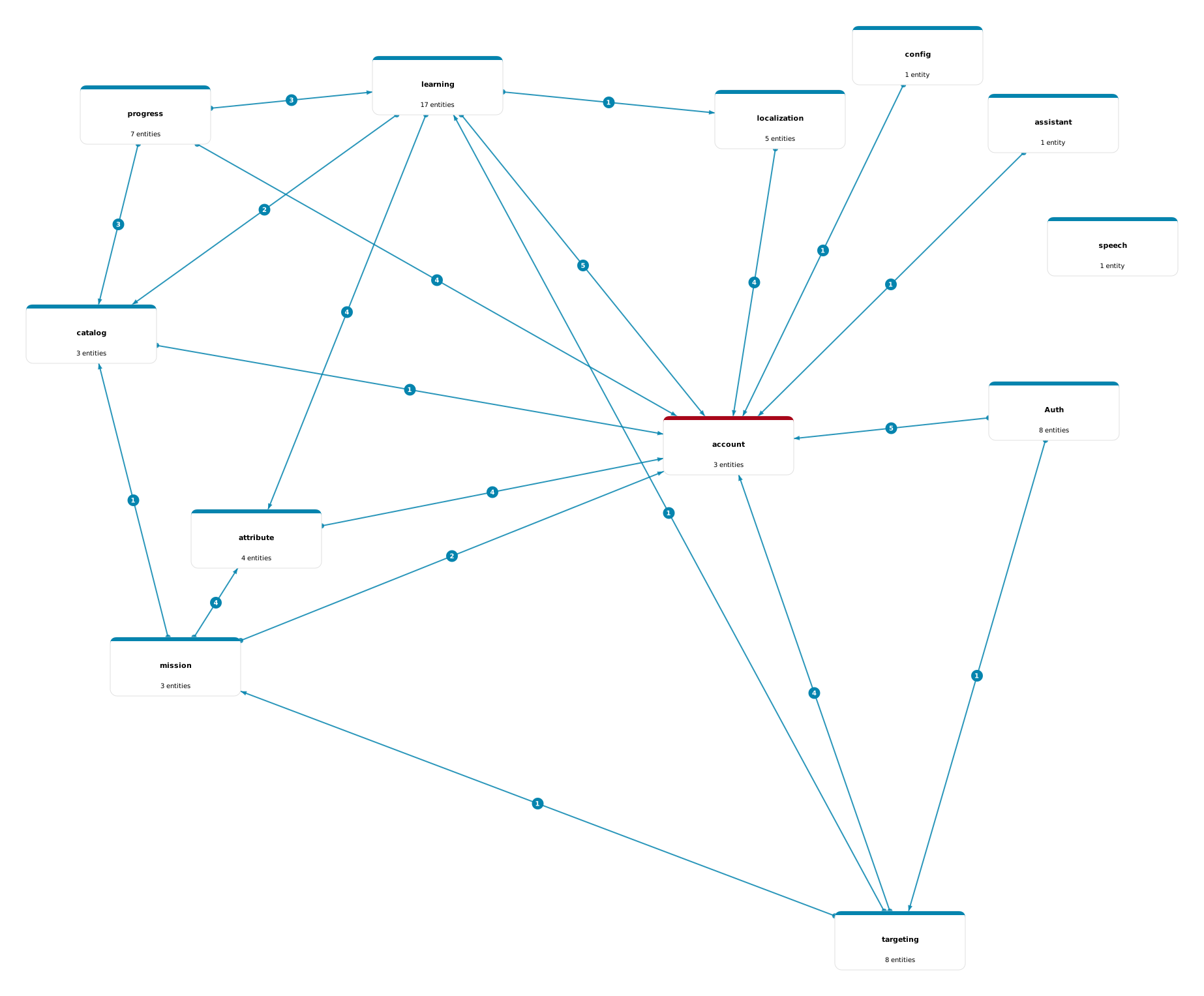
The Context Map is a bird’s-eye view of your schema’s architecture: each context view is rendered as a single node showing its name and entity count, and the arrows between nodes are derived from the actual foreign keys in the diagram. It is computed, not drawn - when relationships change, the map follows, so there is no separate architecture diagram to keep in sync. Click Exit Context Map to return to the diagram.
The video below is the whole loop in under half a minute: opening the map from the Context Views panel, reading the dependency arrows, and double-clicking one to see the foreign keys behind it. The sections after it cover the same ground in text.
Watch: opening the Context Map and reading a dependency
How do I open the Context Map?
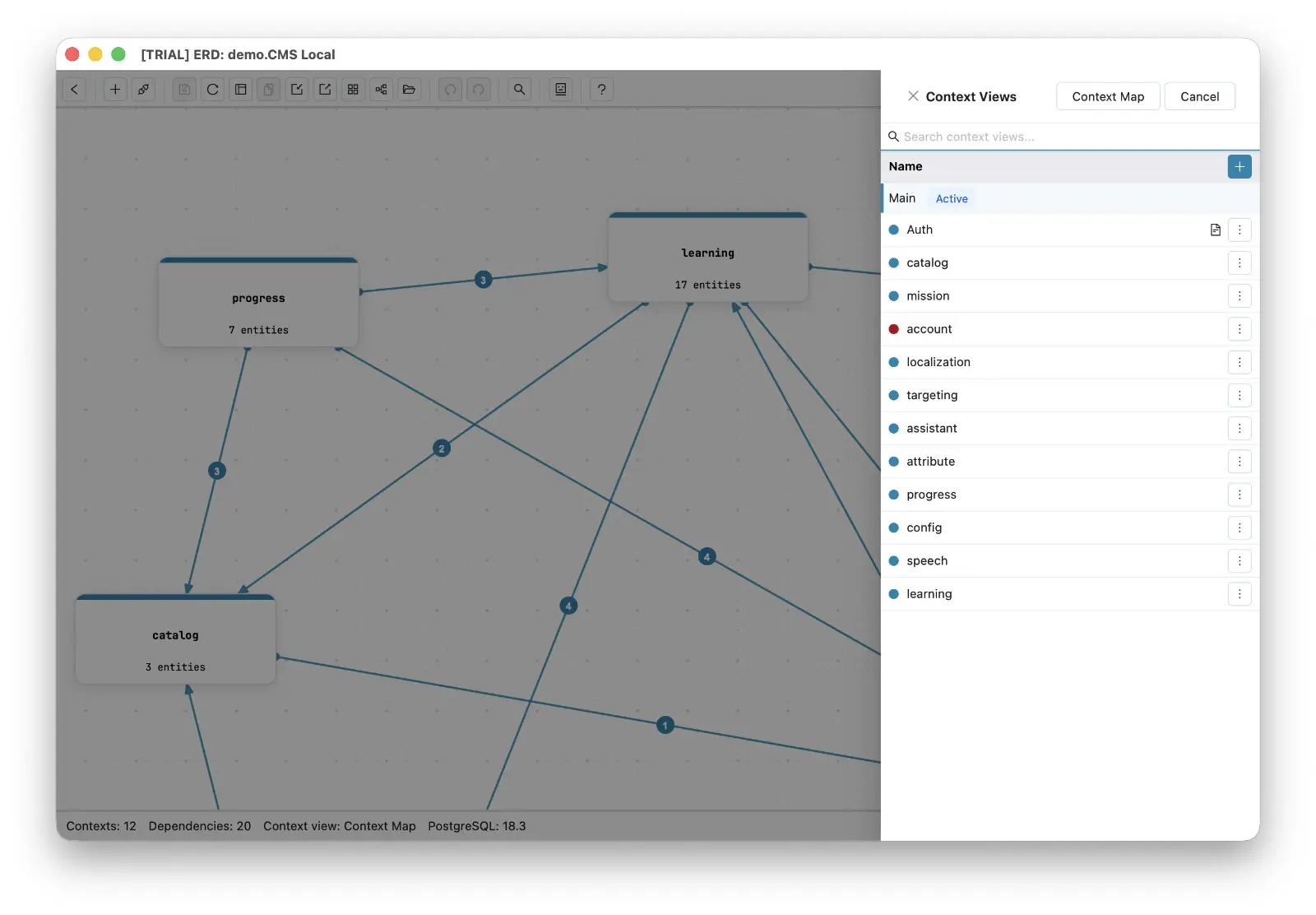
Open the Context Views panel and click Context Map in its header. The panel lists every context view in the diagram with its color dot; the map renders all of them at once. The first time you open it, the map arranges itself by its dependencies, so it reads at a glance rather than in name order; move a box and your layout is kept from then on.
To leave, click Main diagram, or use the separate button that returns to the context view you came from.
Can a diagram open straight on the Context Map?
Yes. In the connection dialog, set Open on to the Context Map, and the diagram opens on the map instead of the main diagram. On a large schema this is also the fast way in: the main canvas is only built the first time you go to it, and on a 1,035-table test schema opening on the map took about 4 seconds and settled at 0.46 GB of memory, against about 10 seconds and 1.1 to 1.7 GB for the main diagram, on a 16 GB M1 Pro. A diagram with no context views yet opens on the main diagram whatever the setting says.
What do the arrows on the Context Map mean?
An arrow is drawn from context A to context B whenever entities in A hold foreign keys into entities in B. The arrows are built to be read precisely:
- One arrow per direction. If two contexts depend on each other, each direction gets its own arrow, so an asymmetric dependency (1 foreign key one way, 5 the other) reads at a glance.
- A badge with the foreign key count sits on every arrow - the weight of the dependency, not just its existence.
- A circle marks the source end of every arrow, so a line that merely passes through or near a context is never misread as originating from it.
- Solid, dashed, or ringed. An arrow is solid when every relation behind it is a declared foreign key, dashed when every one is a virtual relation, and solid with a dashed ring around its count badge when the two mix. SVG export draws the same, and Mermaid export uses a dotted link for an all-virtual dependency.
- Color follows the context. Each context view’s color carries onto its node header and its outgoing arrows, the same way an entity’s color propagates to its relationships on the main diagram.
How do I spot circular dependencies between contexts?
Read the arrow shapes. A straight arrow is a one-way dependency. A curved arrow means the two contexts depend on each other - a circular dependency. Scanning the map for curves is the whole audit: any curve is a pair of contexts that cannot be separated cleanly until one direction is removed.
Curves flag cycles between two contexts. Indirect cycles span several contexts (A depends on C, C on B, B back on A - every arrow straight, yet a cycle), and the map finds them for you:
- The Cycles button in the corner of the map lists every dependency loop between context views, shortest first, two-context and indirect alike. Picking one selects its contexts and lights only the loop’s own arrows.
- Ask your AI agent. Over MCP,
get_context_viewsreturns the dependencies, which of their relations are virtual, and the cycles, so an agent can answer directly.
How do I see which foreign keys create a dependency?
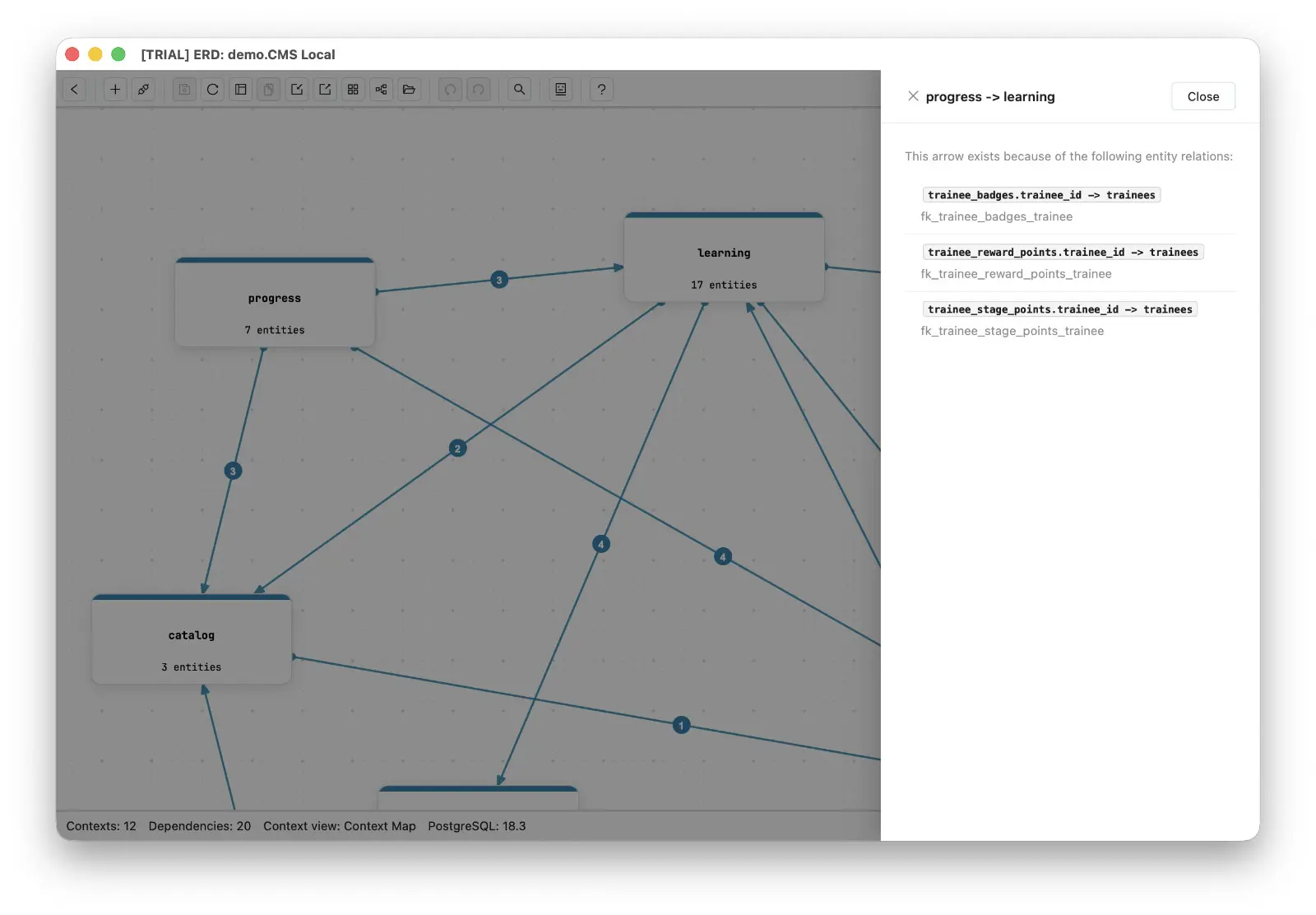
Click a dependency arrow. A panel lists every entity relation behind that arrow - the source field, the target entity, and the actual constraint name (for example otps.tenant_id -> tenants, otps_tenant_id_fkey). This is the exact coupling surface between the two contexts, useful for design reviews or for planning a module extraction. Arrows count virtual relations too, because a dependency is real whether or not the database enforces it; the panel says how many of its rows are declared and how many virtual, and tags each virtual row Virtual or Inferred.
The panel header names the direction it is explaining, and there is one row per relation - so the number of rows always matches the count on the arrow’s badge. The 3 on progress -> learning below opens into exactly three foreign keys, all of them pointing at the same trainees table.
How do I inspect one context on a busy map?
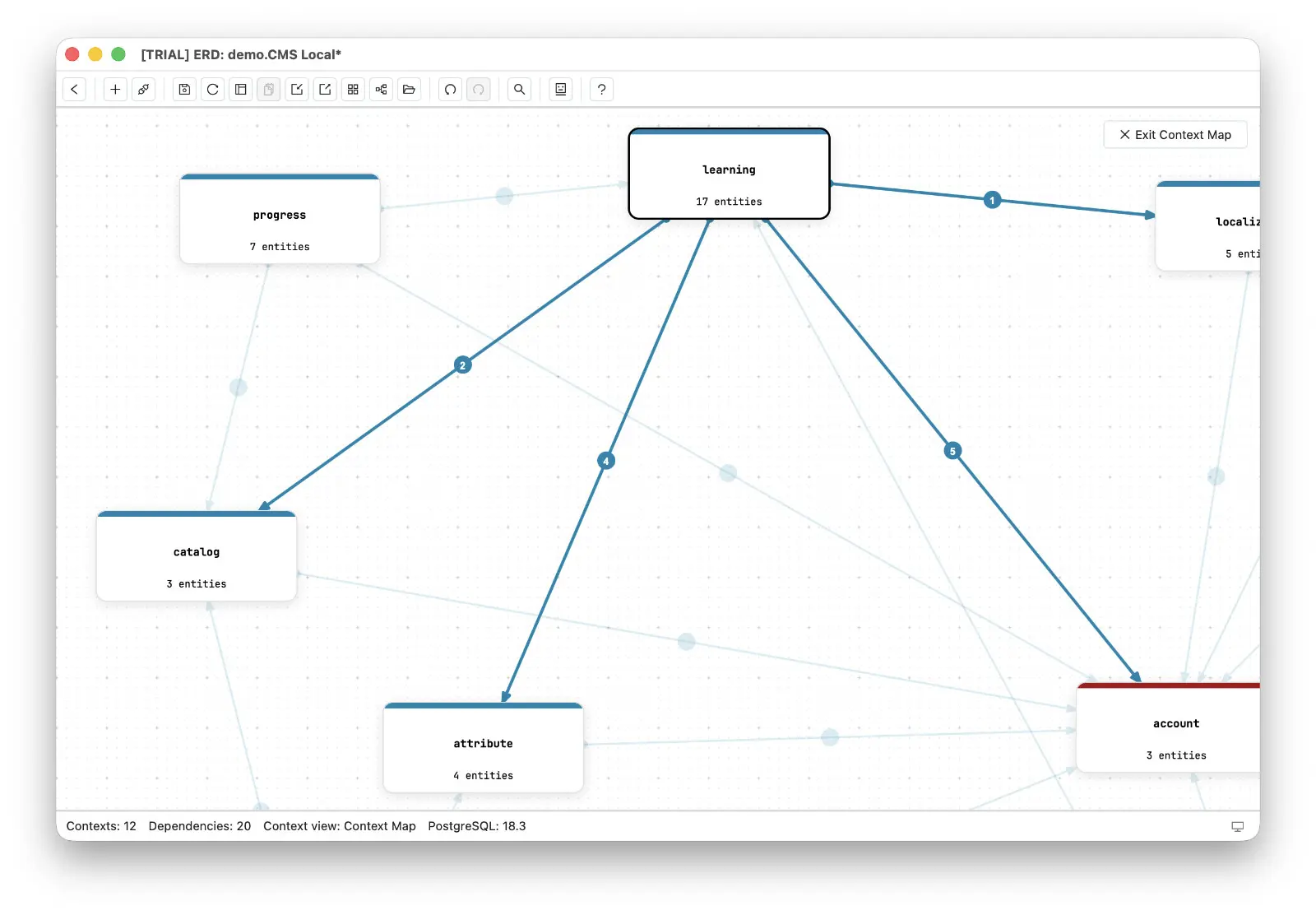
- Click a context to highlight what it depends on and dim what depends on it, while every other arrow is hidden, so you can trace its dependencies without following lines by eye. Shift+click (Cmd+click on macOS) adds or removes more contexts.
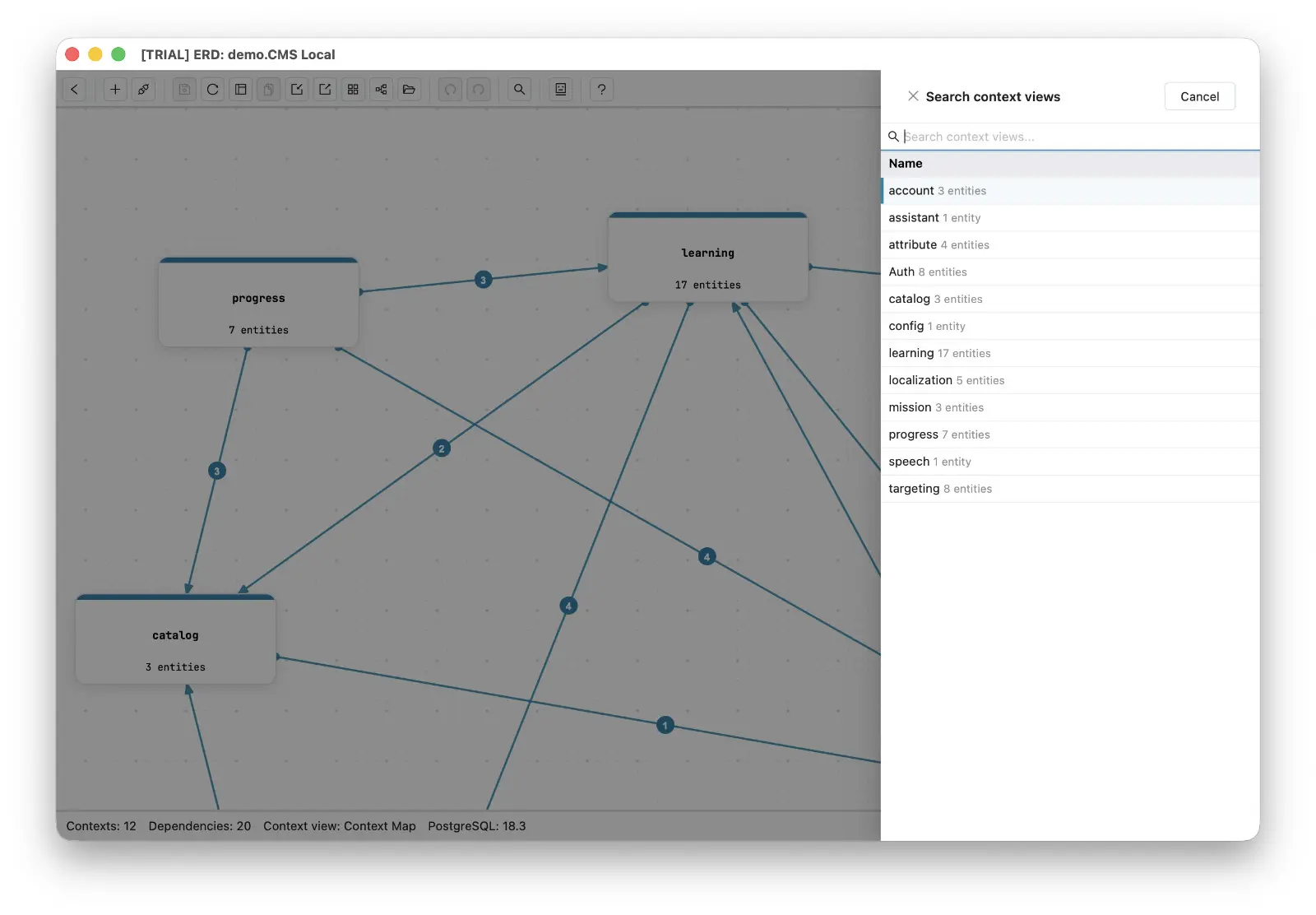
- Fuzzy search finds a context by any fragment of its name and focuses and highlights the match.
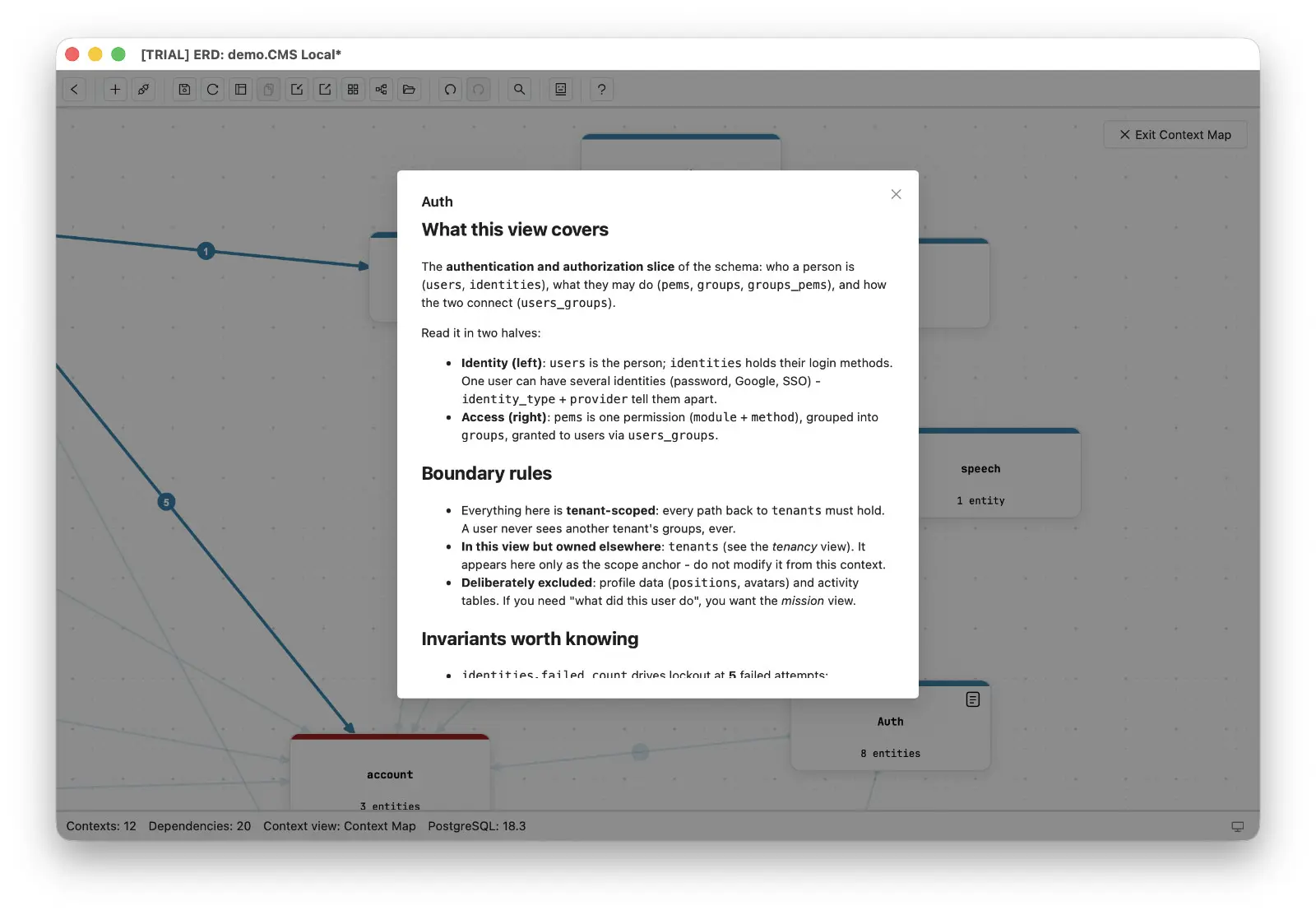
- A context whose view carries a markdown description shows a file icon on its node; clicking it opens a modal rendering the description, so what a context is for is readable without leaving the map.
- The footer keeps the totals in view: how many contexts the map contains and how many dependencies run between them - for example
Contexts: 12 Dependencies: 20.
Search lists every context with its entity count as you type, so jumping to one on a crowded map takes a few keystrokes.
The description modal renders the full markdown attached to the context view - what the view covers, its boundary rules, and the invariants worth knowing - read straight from the map.
Is this like the C4 model’s zoom levels?
Yes, inside one database. The C4 model describes software at zoom levels, each one a closer look at the level above it. Schemity gives a schema the same path:
- Context Map - each domain is one node, and the arrows show which domains depend on which.
- Context view - one domain’s tables, plus the tables at its edges that it references.
- Main diagram - every table and column in the schema.
The difference is what the levels contain. In C4 the database is a single box at the container level, and each level shows a different kind of element: people and systems, then applications, then components, then code. Schemity works inside that one box, and every level shows tables, grouped differently. The arrows are not drawn by hand either: they are counted from the foreign keys, so the zoomed-out picture cannot disagree with the tables underneath it.
Can I export the Context Map?
Yes. The Context Map exports as JPG, PNG, or SVG, or as a Mermaid diagram - so the architecture picture renders natively in Mermaid-enabled platforms such as GitHub, GitLab, Notion, and Obsidian, right next to the code it describes. The map at the top of this page is an unedited SVG export, which is why it stays sharp at any zoom.
Next
The map can never drift from the schema because every view derives from one set of entities - see the Single Source of Truth workflow.