Schemity lets you keep several diagrams open at once, each in its own tab, and move between them with the keyboard. You can work across multiple connections without going back to the workspace screen every time.
Tabs
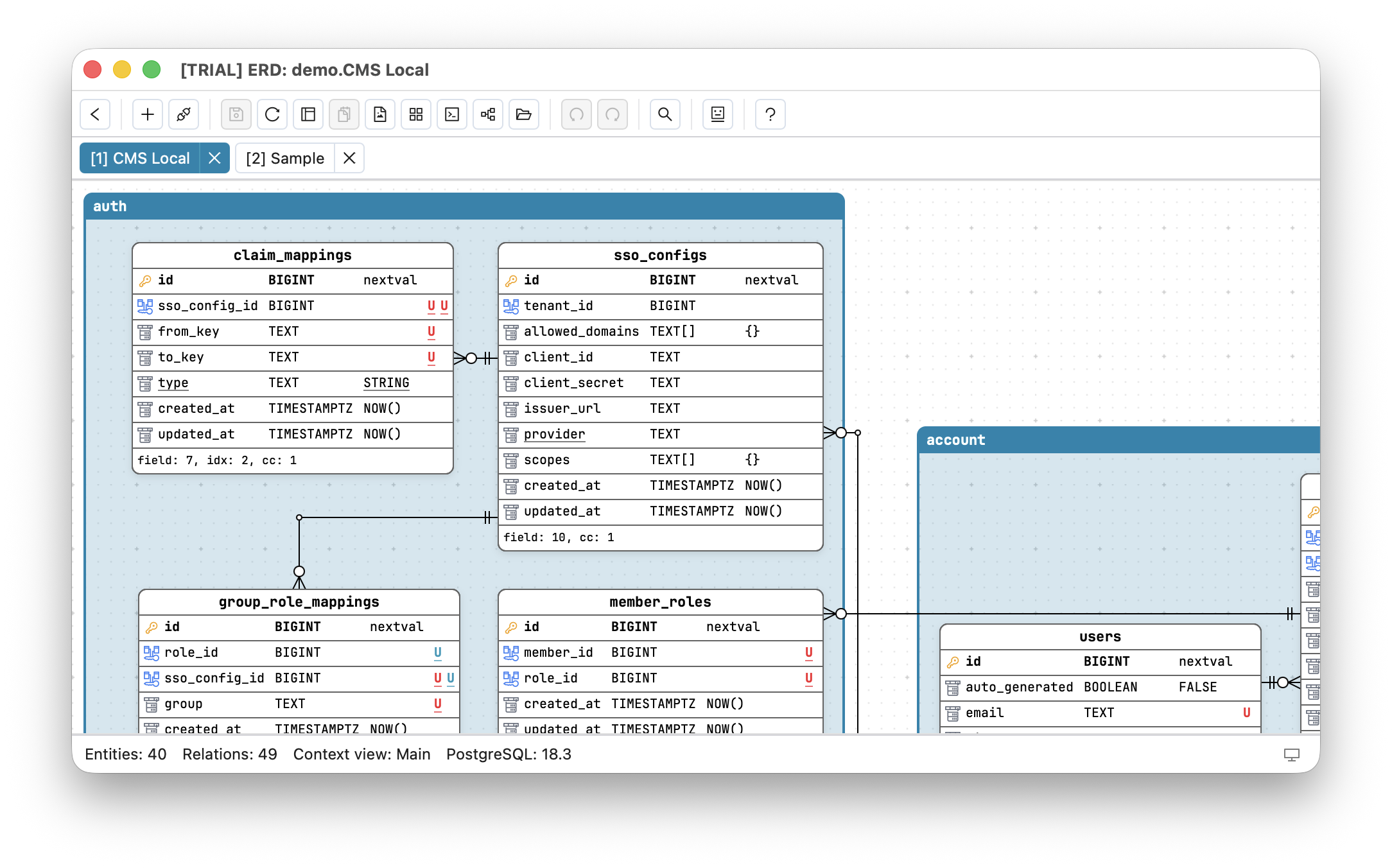
Every open diagram is a tab in the control bar. The tab bar appears as soon as you have two or more diagrams open. Each tab is labelled with the connection’s name and a few cues:
- A numeric prefix,
[1]through[9], for the first nine tabs - this is the number you press to jump to it. Tabs beyond nine have no prefix. - A trailing
*when the tab has unsaved changes. - An underlined label when the diagram is open read-only.
Each tab keeps its own state - scroll position, selection, and undo/redo history - so switching back and forth never loses your place.
The connection list inside the editor
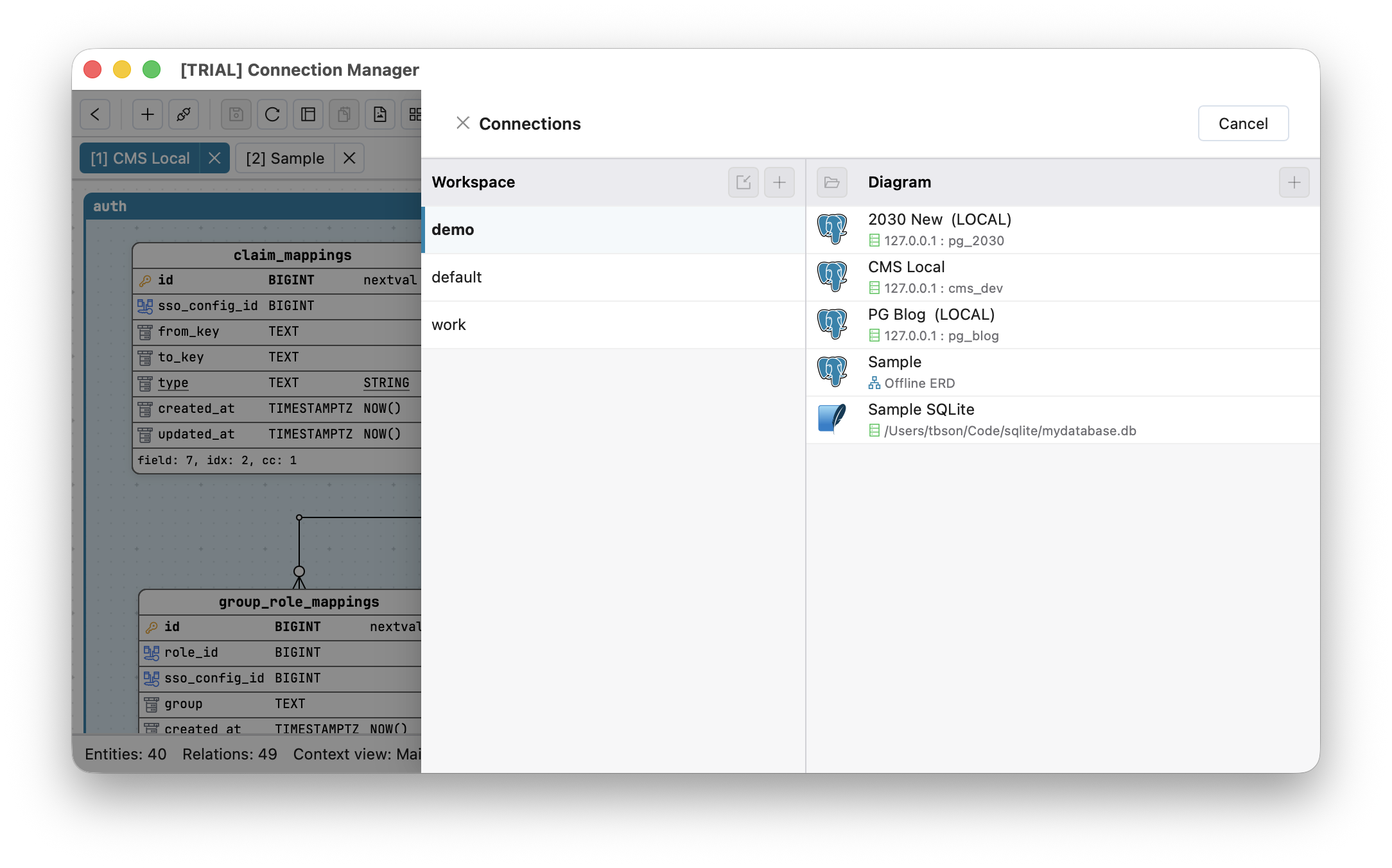
You do not have to leave the ERD to open another diagram. The Connection list opens the Connections drawer right over your canvas. From it you can:
- Click a connection to open it - it opens in a new tab.
- Create a new connection.
- Edit, duplicate, or delete existing connections.
Open it from the Connection list button in the toolbar, or with the keyboard shortcut below. To leave the editor entirely and return to the workspace screen, use Back to connection list.
Keyboard shortcuts
| Action | macOS | Windows / Linux |
|---|---|---|
| Jump to tab 1-9 | ⌘1 … ⌘9 | Ctrl+1 … Ctrl+9 |
| Open the connection list | ⌘⇧C | Ctrl+Shift+C |
| Back to the connection list (workspace) | ⌘B | Ctrl+B |
| Reset the current diagram (re-read the database) | ⌘R | Ctrl+R |
| Close the current tab | ⌘W | Ctrl+W |
Pressing a tab number that is not open (for example ⌘5 with only three tabs) simply does nothing. On the web version, the browser keeps a few of these combinations (⌘1-9, ⌘W, ⌘R) for its own tabs; on the desktop app Schemity handles them all.
Switching between large diagrams
Switching tabs does not reload data - each diagram stays cached. On a very large schema the swap can take a moment, so Schemity shows a brief loading spinner while it renders the incoming diagram, keeping the switch responsive instead of looking frozen.
Closing tabs and unsaved changes
Close a tab with its X button or with ⌘W / Ctrl+W. Unsaved state is tracked per tab:
- Closing a tab that has unsaved changes asks you to confirm: “You have unsaved changes. Closing will discard them. Continue?” with a Discard & Close option.
- Closing a clean tab never prompts, even if a different tab has unsaved work.
- Read-only diagrams never prompt, since you cannot change them.
Tabs last for the session
Open tabs are remembered only while the app is running; they are not restored after you quit and reopen Schemity. Reopen any diagram from the connection list. Since every diagram is saved to its own JSON file, nothing is lost - the tabs are just a convenience for the current working session.
Next
Dive into designing on The ERD Canvas, or add another database in Connections Overview.